Migrating from a TP-Link Managed Switch to Juniper EX2200

January 2, 2026/Networking/#juniper #switching #vlan

I hit the VLAN 1 failure pattern while migrating from a consumer TP-Link managed switch to a Juniper EX2200. The configs looked equivalent, but the behavior was not.

Consumer switches are forgiving:

  • Trunk ports behave like access ports with extras
  • “Allow all VLANs” plus PVID feels safe
  • End devices often work on trunks accidentally

On the EX2200:

  • Trunks are for VLAN-aware devices only
  • Native VLAN is not a substitute for access ports
  • VLAN 1 must not be implicitly tagged
  • Ambiguous configs are accepted but behave differently

The fix was mostly mental model. Once I treated trunks as trunk-only and made VLAN intent explicit everywhere, VLAN 1 behaved and DHCP stopped failing silently.

For the working port and VLAN patterns, see: Juniper EX2200 VLAN Reference.

Expanding an OPNsense VM disk

January 2, 2026/Networking/#opnsense #freebsd #storage

After resizing the VM disk at the host level, OPNsense does not automatically use the extra space. gpart show may report the disk as corrupt. This is expected.

What is actually happening is the backup GPT header is still at the old end of the disk.

Fix

Enter the console shell.

Repair GPT metadata. This does not touch data.

gpart recover ada0

Resize the root partition. On a default UFS install this is freebsd-ufs, usually partition 3.

gpart resize -i 3 ada0

Grow the filesystem.

growfs /

Verify.

df -h

Notes

  • Applies to UFS installs
  • The corruption warning after a disk resize is normal
  • No reinstall required

Juniper EX2200 VLAN Reference

January 2, 2026/Networking/#juniper #switching #vlan

This is a reference note for configuring VLANs on a Juniper EX2200, written after running into a subtle but repeatable failure mode around VLAN 1. If you are migrating from a TP-Link managed switch, start here: Migrating from a TP-Link Managed Switch to Juniper EX2200.

The short version: the EX2200 is strict. Ambiguous VLAN configuration will not fail loudly, but it will break untagged traffic in ways that are easy to misdiagnose.

Core concepts that matter on EX2200

  • default should be explicitly set to VLAN 1
  • VLAN 1 uses tag value 0
  • A trunk port with a native VLAN is not equivalent to an access port
  • vlan members all is dangerous when a native VLAN is present

If you remember nothing else, remember the last point.

The failure pattern

This configuration looks reasonable but breaks VLAN 1:

  • Port mode: trunk
  • Native VLAN: 1
  • vlan members all

In this state:

  • Tagged VLANs work
  • Untagged VLAN 1 does not
  • DHCP fails silently
  • Clients, AP management, and anything relying on untagged traffic break

The switch is doing exactly what it was told. The problem is that VLAN 1 ends up treated as both tagged and untagged.

The working model

The EX2200 behaves predictably when VLAN intent is explicit.

Access ports

  • Used for non VLAN-aware devices
  • Untagged only
  • VLAN 1 only

Trunk ports

  • Used for VLAN-aware devices
  • Native VLAN 1 for untagged management traffic
  • Explicit list of tagged VLANs
  • Never use all
  • Never include default

This maps cleanly to common homelab gear:

  • Wired clients and CCTV use access ports
  • Omada access points use trunks with native VLAN 1 and tagged SSID VLANs
  • Proxmox hosts use trunks with native VLAN 1 and tagged VM VLANs
  • OPNsense uplinks use trunks with native VLAN 1 and explicitly listed VLANs

Reference commands

Define VLANs

set vlans default vlan-id 1
set vlans vlan2 vlan-id 2
set vlans vlan100 vlan-id 100
set vlans vlan2000 vlan-id 2000

Access port (VLAN 1, untagged)

set interfaces ge-0/0/X unit 0 family ethernet-switching port-mode access
set interfaces ge-0/0/X unit 0 family ethernet-switching vlan members default

Use for:

  • Laptops
  • CCTV
  • Any non VLAN-aware device

Trunk port with native VLAN 1

set interfaces ge-0/0/X unit 0 family ethernet-switching port-mode trunk
set interfaces ge-0/0/X unit 0 family ethernet-switching native-vlan-id 1
set interfaces ge-0/0/X unit 0 family ethernet-switching vlan members [ vlan2 vlan100 vlan2000 ]

Rules:

  • Never use vlan members all
  • Never include default
  • Native VLAN carries VLAN 1 implicitly

Omada access point trunk

set interfaces ge-0/0/X unit 0 family ethernet-switching port-mode trunk
set interfaces ge-0/0/X unit 0 family ethernet-switching native-vlan-id 1
set interfaces ge-0/0/X unit 0 family ethernet-switching vlan members [ vlan2 vlan100 ]
set interfaces ge-0/0/47 unit 0 family ethernet-switching port-mode trunk
set interfaces ge-0/0/47 unit 0 family ethernet-switching native-vlan-id 1
set interfaces ge-0/0/47 unit 0 family ethernet-switching vlan members [ vlan2 vlan100 vlan2000 ]

Proxmox host trunk

set interfaces ge-0/0/46 unit 0 family ethernet-switching port-mode trunk
set interfaces ge-0/0/46 unit 0 family ethernet-switching native-vlan-id 1
set interfaces ge-0/0/46 unit 0 family ethernet-switching vlan members [ vlan2 vlan100 vlan2000 ]

Verify configuration

show configuration
show configuration | display set
show configuration interfaces ge-0/0/X
show configuration vlans

Verify VLAN behavior

show vlans
show vlans default
show ethernet-switching interfaces
show ethernet-switching table interface ge-0/0/X

Cleanup commands

delete interfaces interface-range ALL-PORTS
delete interfaces ge-0/0/X unit 0 family ethernet-switching vlan members all

This is a reference, not a tutorial. It exists so future me does not relearn the same lesson the hard way.
Cloning Tailscale VM

July 25, 2024/Networking/#networking

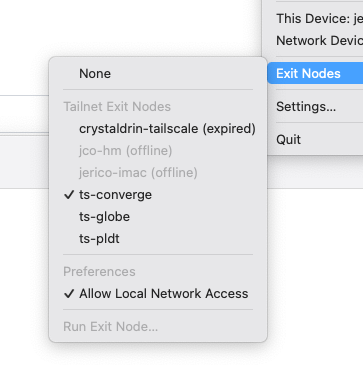
I wanted to create 3 Tailscale exit nodes for my 3 ISPs: Globe, PLDT, and Converge. I’m thinking of using it as a DIY VPN because sometimes some sites are slow on an ISP.

I mapped each VM to different VLAN specific to the ISP it will use.

Issue: Duplicate node key

I encountered an issue where when I clone a VM with running Tailscale, running tailscale up results in the same node key. To reset the node key, I had to:

apt-get remove tailscale
rm -r /var/cache/tailscale
rm /var/lib/tailscale/tailscaled.state
apt-get install tailscale
tailscale up -reset

Finding a Philippine-based VPS

December 9, 2023/Networking/#vps

When I learned the term about multihoming, I revisited my interest again to have a VPS (Virtual Private Server) to setup as a VPN (Virtual Private Network) for my home network.

I wanted it to be hosted in the Philippines because of latency. Major hosting providers uses Singapore or Hong Kong to cater the PH market. But the latency is just too high at around 30ms.

I found one in LightNode. The cost is reasonable too for $7.7 USD/month.

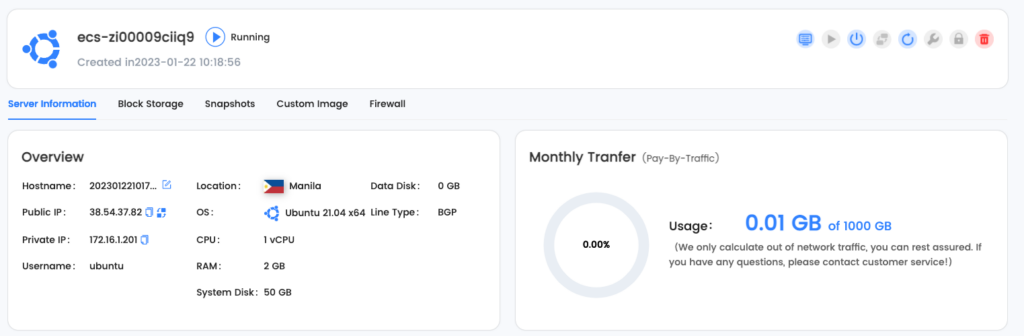
LightNode’s dashboard

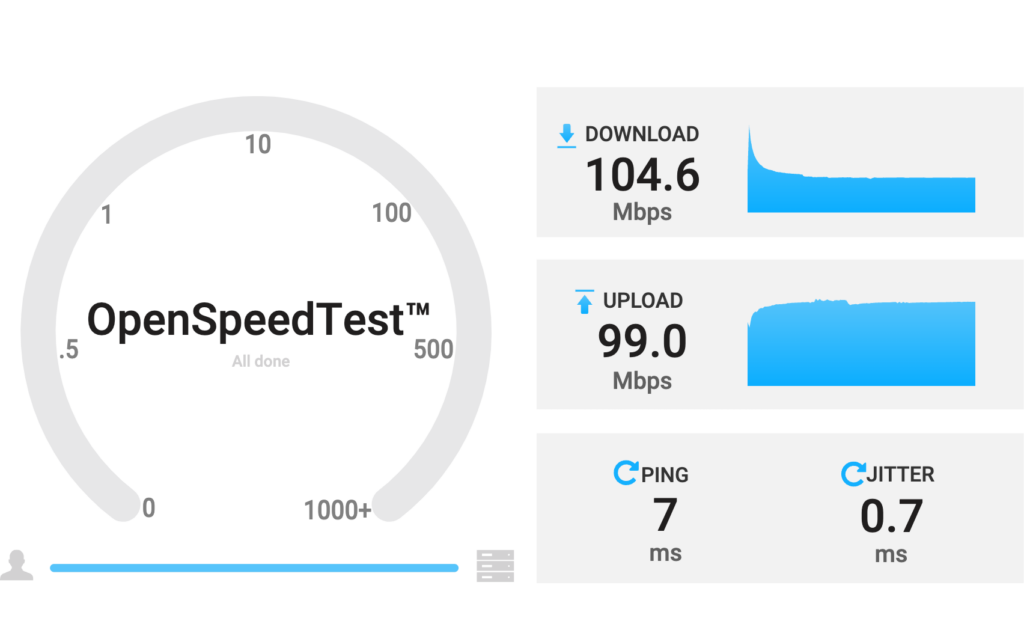
The drawback is it looks to be limited to 100mbps only. Which is still reasonable.

Speed test from/to VPS to my home internet

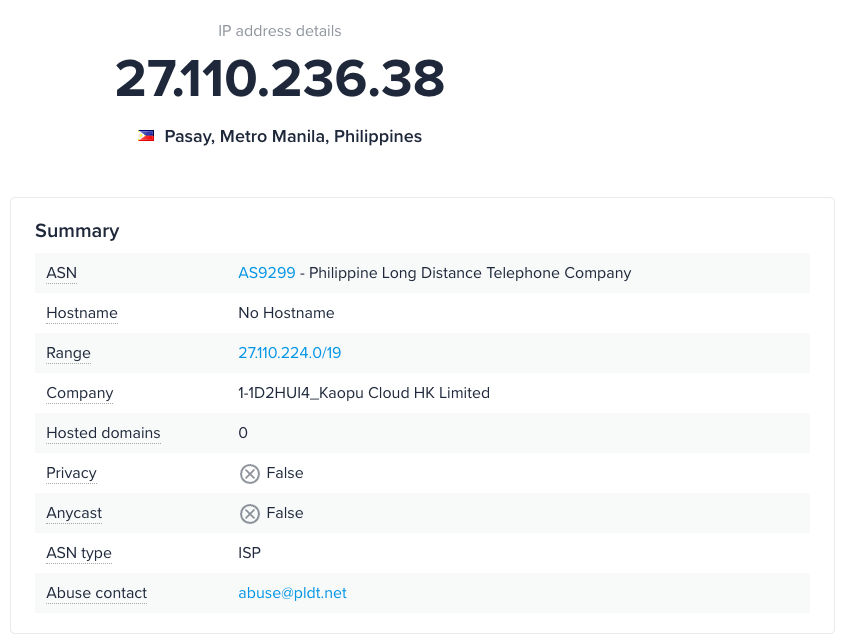
Checking the hops, it looks like they are hosted within PLDT’s data center:

IP information

This is why the latency is at a very good range of 7ms. It does hop at one NAT which I think adds the 2ms. Overall this is good.

I’m going ahead and continue to use this and integrate it with my home network setup.

Next step is to understand multihoming.

Philippine-based VPS

January 22, 2023/Networking/#vps

When I learned the term about multihoming, I revisited my interest again to have a VPS to setup as a VPN for my network.

I wanted it to be hosted in the Philippines because of latency. Major hosting providers uses Singapore or Hong Kong to cater the PH market. But the latency is just too high at around 30ms.

I found one in LightNode. The cost is reasonable too for $7.7 USD/month.

The drawback is it looks to be limited to 100mbps only. Which is still reasonable.

Checking the hops, it looks like they are hosted within PLDT’s data center:

This is why the latency is at a very good range of 7ms. It does hop at one NAT which I think adds the 2ms. Overall this is good.

I’m going ahead and continue to use this and integrate it with my home network setup.

Next step is to understand multihoming.

Thinking of changing router

January 16, 2023/Networking/#networking

I’ve been considering changing my router from Omada’s R605 to something more configurable.

Omada is great for managing switch and access points. Sobrang seemless mag-add ng bagong device. Routing-wise, it works naman pero biggest gripe ko yung detection ng WAN connection. It can only do it per minute.

Kaya I’ve been looking to switch to Mikrotik CHR.

I found this blog post with benchmarks. VyOS came on top. I was not even aware of VyOS before. Kaya bagong rabbit hole nanaman. I’ll give it a shot soon.

VyOS

It supports PPPoE which is the main reason why I’m looking to switch sa Mikrotik.

https://docs.vyos.io/en/stable/configuration/service/pppoe-server.html

USB to Ethernet Adaptors

January 14, 2023/Networking/#networking

I have quite a few mini-PC that has only a single gigabit port. I’ve been considering and researching how to expand those to have an extra port. One of those options was using a USB to Ethernet adaptor.

Now, I’ve looked at this option before. Ang nakuha ko lang puro discouragement na hindi siya stable.

  • Doesn’t offload all processing from the CPU, causing high CPU usage.
  • Additional USB abstraction compared to PCIe.

I found this thread, they discussed different chipsets and they benchmarked it too: https://forums.macrumors.com/threads/macbook-air-usb-c-ethernet-unreliable.2287743/

CDC - Communication Device Class (USB)
NCM - Network Control Model
https://www.keil.com/pack/doc/mw/USB/html/group__usbd__cdc_functions__ncm.html

A CDC NCM compliant device exposes itself as a virtual NIC to the host operating system.

A CDC ECM is a predecessor of NCM that needs software implementation of other Ethernet standards, causing high CPU usage during transfer.

MacOS

AX88179A

AX88179A:
Bus: USB
Vendor Name: ASIX
Product Name: AX88179A
Vendor ID: 0x0b95
Product ID: 0x1790
USB Link Speed: Up to 5 Gb/s
Driver: com.apple.driver.usb.cdc.ncm
BSD Device Name: en4
MAC Address: 20:7b:d2:11:a4:e3
AVB Support: No
Maximum Link Speed: 2.5 Gb/s

Another recommended chipset is Realtek RTL8156B: https://khronokernel.github.io/macos/2021/11/22/PCIE-ETHERNET.html

Proxmox

https://forum.proxmox.com/threads/solved-the-problem-problem-with-2-usb-network-cards-asix-ax88179.101732/

Recommended chipset: RTL8153.

Issue with AX88179: starts not active. Solution is to create a bridge.

https://forum.proxmox.com/threads/ax88179_178a-c-fixed-for-proxmox-e-g-use-with-freebsd-opnsense.60879/

Implementing a Free WiFi

August 30, 2021/Networking/#networking

Implementing a Free WiFi

When fiber internet was rolled out at my Mom’s home, I had this itch to provide internet for the whole compound. She have an ice cream business and she provides housing to ice cream vendors (sorbetero) together with their families. Around half the compound are sorbeteros. Most of which will benefit if they don’t have to add another expense for internet.

Fiber made bandwidth cheap (P2699 for 100mbps). I knew that a 100mbps plan is more than enough for everyone there. The bottleneck is the device the comes with the internet plan. The device PLDT provides is actually an all-in-one that combines a modem, router, switch, and an access point (WiFi).

To increase coverage, I need to split out the access point and use a separate device.

Project goal

  • Share internet that covers the whole compound
  • Performance should be adequate for remote learning or work-from-home (Zoom, Google Meet)
  • Have the same experience as having their own WiFi
  • Roaming-capable (when people move, their device will automatically switch to the next nearest access point)
  • Minimal restrictions

Implementation

I opted to go with a business-grade solution. Big factor is a single dashboard to manage all access points. I was initially considering Ubiquity, but then found out about TP-Link Omada which is half the price.

  • I get notified through Omada app if the internet is down or if any of the access point stops working
  • There are only 2 SSIDs (WiFi name) for 7 access points. One personal and another for the free WiFi. Each has it’s own subnet.
  • Free WiFi’s subnet is limited to 50mbps to guarantee that the personal network always have bandwidth available
  • Each device is further limited to 20mbps (initially this was 10mbps but utilization rate was low, I bumped it up to 20mbps)
  • I had to block Mobile Legends because kids from other compound started coming to our compound to have a tournament until late night. Blocking is just another ACL rule to block port 30000 to 31000. ML stopped loading after this has been applied.

Interesting metrics

  • 7 access points covered more than 20 households
  • Average internet utilization is only around 20%
  • Average traffic is around 180GB download and 15GB upload daily
  • Max connected clients so far was 90+ devices
  • It’s been running since May 2021. Things has been relatively stable. Downtime was only when there’s no electricity.

Cost

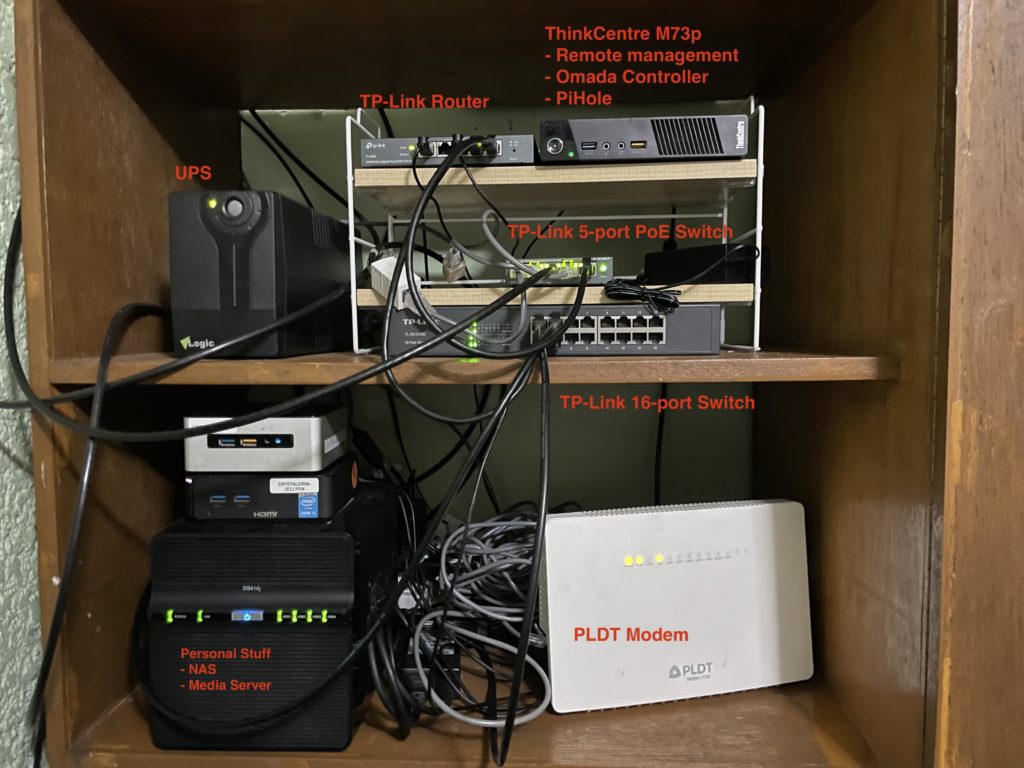
Network setup

Next step: better cable management

ItemUnit PriceQtyTotal
TP Link Router R509₱2,180.001₱2,180.00
TP Link 5-port PoE Switch₱1,440.001₱1,440.00
TP Link EAP110-Outdoor₱1,400.002₱2,800.00
TP Link EAP225-Outdoor₱2,900.004₱11,600.00
TP Link EAP235-Wall₱2,900.001₱2,900.00
Thinkcentre m73p₱2,500.001₱2,500.00
Omni plugs₱442.771₱442.77
Waterproof Junction₱580.231₱580.23
305m CAT6 outdoor cable₱2,250.001₱2,250.00
Total₱24,443.00

I could have implement the whole thing 50% cheaper but it’ll be a pain to maintain and less fun to do. Since I’m doing this for free, I might as well enjoy haha.

Why

I see this as a hobby. I’ve always been fascinated with computer networking for as long as I can remember.

The 25k I spent could’ve easily been another gadget where only I would benefit (and add another stuff to my life). Spending it on this instead accomplishes two things: 1) I had fun planning, figuring things out, and setting it up 2) It has good net effect because a lot of people are getting value from it. And that makes me happy.

I also learned a lot. I finally understood how VLAN works. It’s nice that I can map an SSID to a VLAN to have it’s own network. Power-over-Ethernet was also nice because there’s only one cable for power and data (CAT6).

Overall it was worthwhile.

High-availability Mobile Internet

August 29, 2021/Networking/#networking

My role at work is partly DevOps. This means that there are rare instances that even if I’m not at home (where internet is reliably available), I might get an alert where a server is not working as it should.

I have mobile data plan from Globe for that. Globe is usually good within cities. The more remote I get though, the less reliable it becomes. My initial solution was to get another phone and line from Smart (competitor).

However, I have minimalist tendency. Paying for two plans monthly feels wasteful. Especially during this pandemic where I barely use both.

I also didn’t like having two phones with me all the time.

Solution: Globe eSim + Smart Magic Sim

My primary network is Globe. I don’t mind paying monthly for this because it’s the same number I used for years. Good thing that they offer eSim which is supported by my phone.

The process was easy. Go to Globe store, ask for conversion from physical sim to eSim. They will then provide a QR code a phone can scan to register the number. That’s it. The eSim solution eliminated my need to carry two phones all the time because I can put in another sim to my phone.

For Smart, I recently found out that they are offering a new product called Magic Sim. It has non-expiring data at P399 for 24GB. Non-expiring! I only need to pay for it when I use it. I dropped the Smart plan I used to have which I was paying for P3500/monthly (easy to justify pre-pandemic) and replaced it with this one.

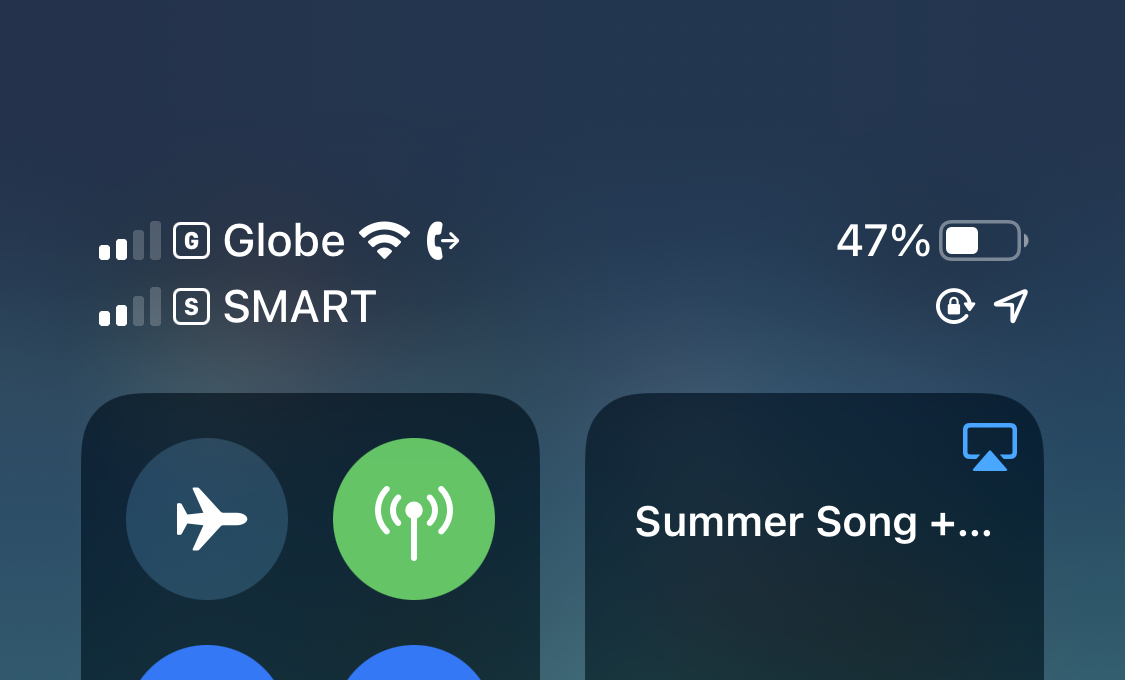
End result is I have a single phone with two sims from different network. I’m only paying monthly for my primary network. My phone auto-switches network depending on availability of internet.

#

I know this is borderline penny-pinching (which I try not to do). But I like keeping my personal lifestyle low-cost. I also enjoyed eliminating the waste I feel every time I do my budgeting.